 User Interface: Master Datasheet Administration
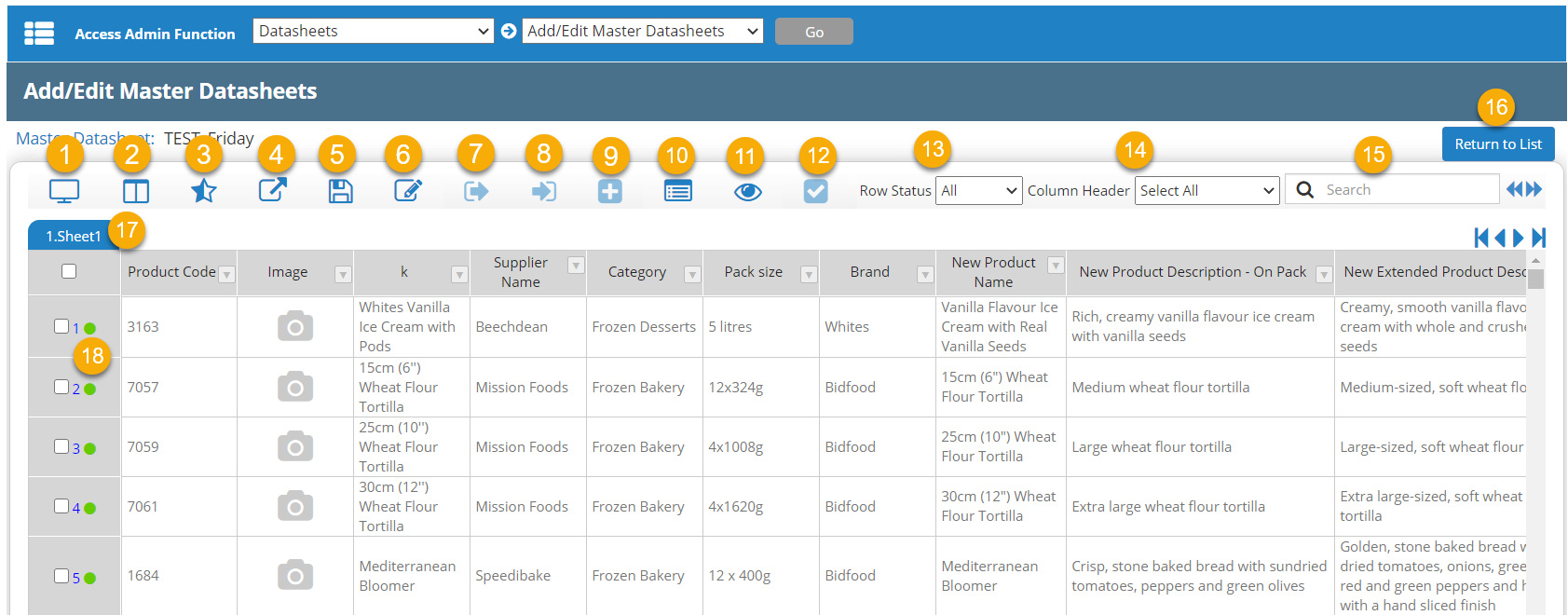
When you go to Admin  > Datasheets > Add/Edit Master Datasheets, and then click Edit Content for a master datasheet, the master datasheet view has the following components.
|
|
Component |
Description |
|---|---|---|
| 1 | Full Screen | Full screen view of the master datasheet. |
| 2 | Row View | Toggle or rotate the view so that the X and Y coordinates are reversed. The columns will display on the left and the rows will become columns. Comments can be viewed and added and in this display mode. |
|
3 |
Highlight Changes |
Highlight changes by date. |
| 4 |
Export |
Export the master datasheet. |
| 5 | Save | Save the datasheet after modifications have been made. |
| 6 | Edit | Enable edit mode for the datasheet. See Edit Master Datasheet Content. |
|
7 |
Check Out |
Check out a row. |
|
8 |
Check In |
Check in a row. |
|
9 |
Add Project |
Create a new project from the selected row(s). |
|
10 |
Log View |
Display the audit log. |
|
11 |
Show/Hide Disabled Column |
Show or hide disabled columns. |
|
12 |
Show Selected |
Filter to display only selected row(s). |
|
13 |
Row Status |
Filter to display rows based on row status. |
| 14 | Column header filter | Filter to display columns based on column header property. |
| 15 | Search | Search the master datasheet contents. Supports OR search (enter multiple words to return results matching any of the terms) and phrase search (use quotes to return results matching the exact phrase). |
| 16 | Return to List | Go back to the list of master datasheets (previous screen). |
| 17 | Current tab | Currently displayed data tab. |
|
18 |
Row status |
Whether the row status is enabled, disabled, or pending. |
 more
more