Defining a Phrase Project Data Field
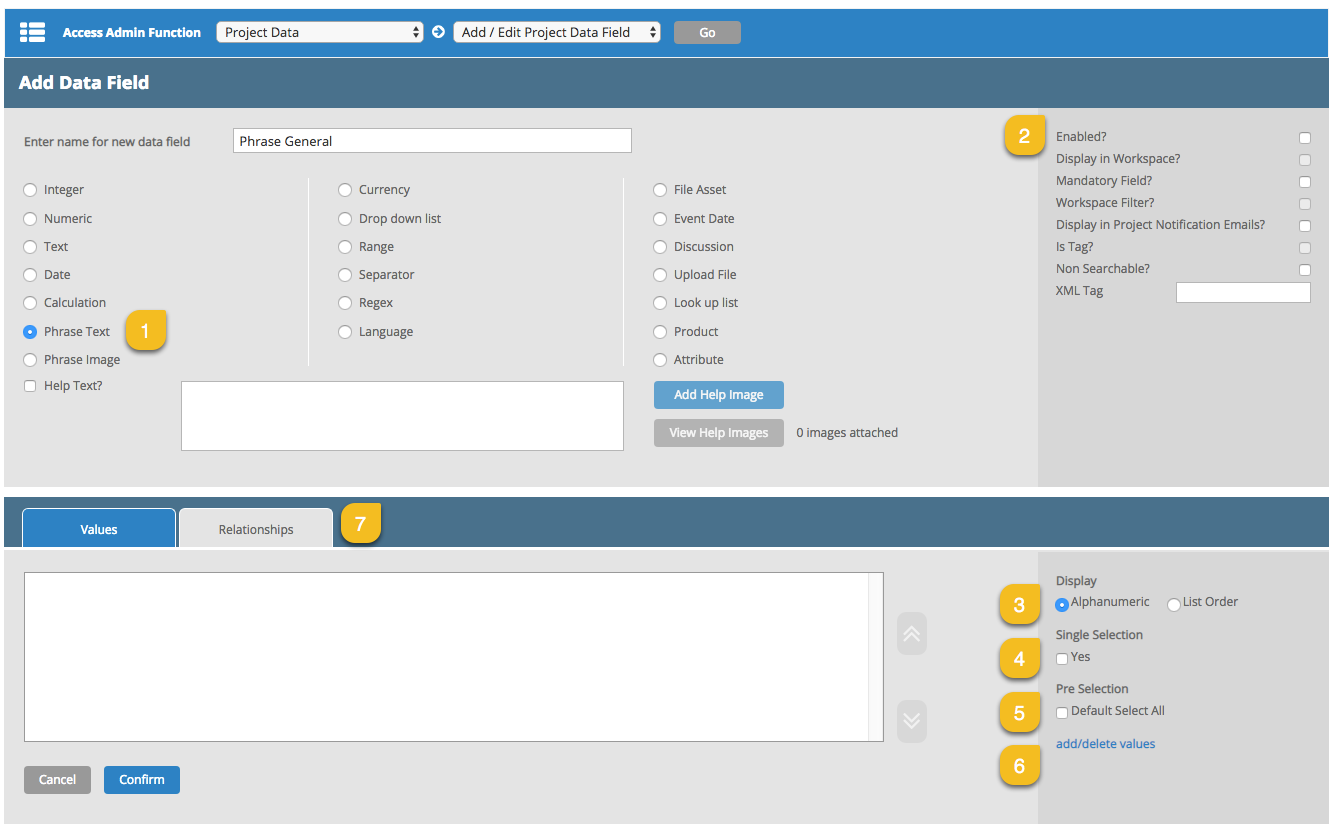
To create a Phrase project data field, we use data field type ‘Phrase Text’ to allow user to select one or multiple phrase (type text) or we use data field type ‘Phrase Image’ to allow user to select one or multiple phrase (type image).
|
|
Description |
|---|---|
|
1 |
Project Data Field type is Phrase Text or Phrase Image. |
|
2 |
Options of Display in Workspace, Mandatory Field, Workspace Filter, Project Notification emails can be applied. |
|
3 |
Phrases can be displayed in List order or Alphanumeric order |
|
4 |
Field can be single selection or multiple selection. Null value is always included. |
|
5 |
Allow system to pre-select all available values. |
|
6 |
Link to Add or Remove values from Selection List. |
|
7 |
Add related project data fields. Related data fields are required to activate the database relationships between phrase and product/attribute in the project. See more detail in section below ‘Project Data Field Relationships and Business Rules’ |
|
|
Description |
|---|---|
|
8 |
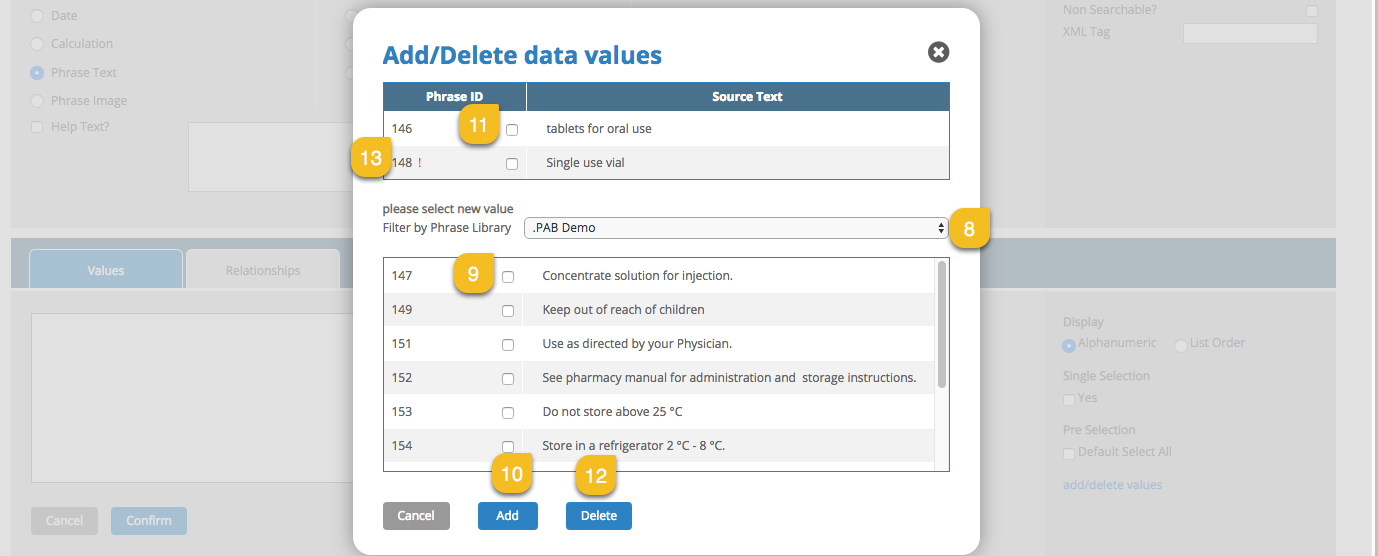
Select Phrase Library which contains phrase you want to select. Enabled and Pending phrases, in this Phrase Library, will display in the bottom list. |
|
9 |
Select Phrase to add to list via checkbox. |
|
10 |
Use Add to add to list, phrase will now appear in top, selected, list. |
|
11 |
To remove Phrase, select phrase from selected list via checkbox. |
|
12 |
Use Delete to remove phrase. This will remove phrase and disallow this phrase from being selected in projects. Any pre-existing projects where this phrase is already selected will be maintained. |
|
13 |
Phrase in Pending status will display with red ! |
 more
more