View Color Separation of an Artwork
A color separation is a mechanism built into an artwork PDF by the creator designed to indicate to the printer what will be printed in each colour. In DaVinci and in the Compare Files tool, you can view an artwork file with a single color separation, more than one separation, or all color separations.
View a Single Separation
- In DaVinci or in the Compare Files tool, click the Show All drop-down list.
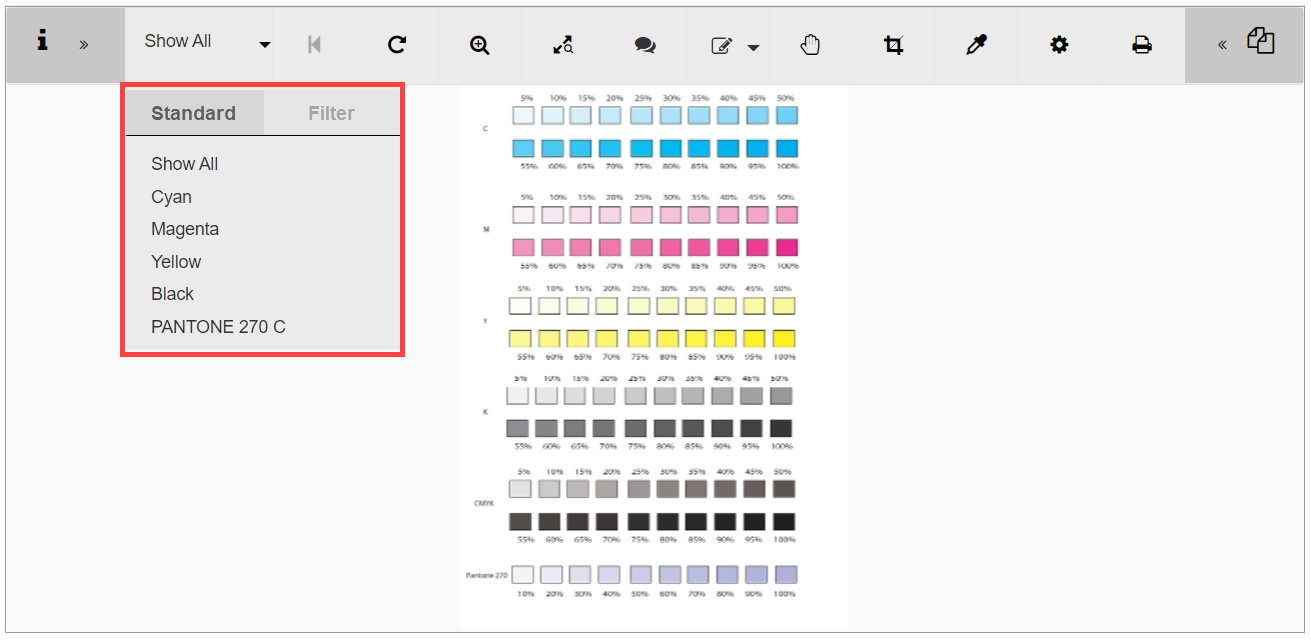
- Under the Standard tab, select a color from the list.
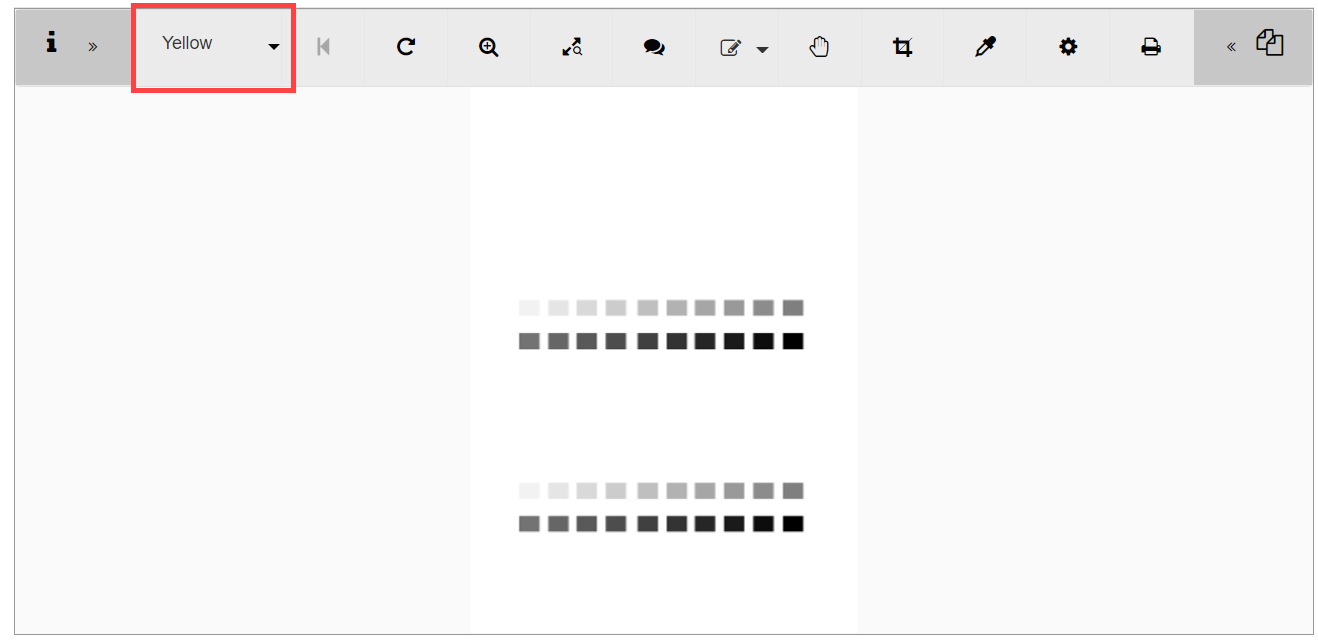
The name of the selected color is displayed in the toolbar.
Note: Single color separations selected under the Standard tab are always displayed in black.
View Multiple Separations
- In DaVinci or in the Compare Files tool, click the Show All drop-down list.
- Under the Filter tab, clear the Show All check box.
- Select the colors from the list that you want displayed.
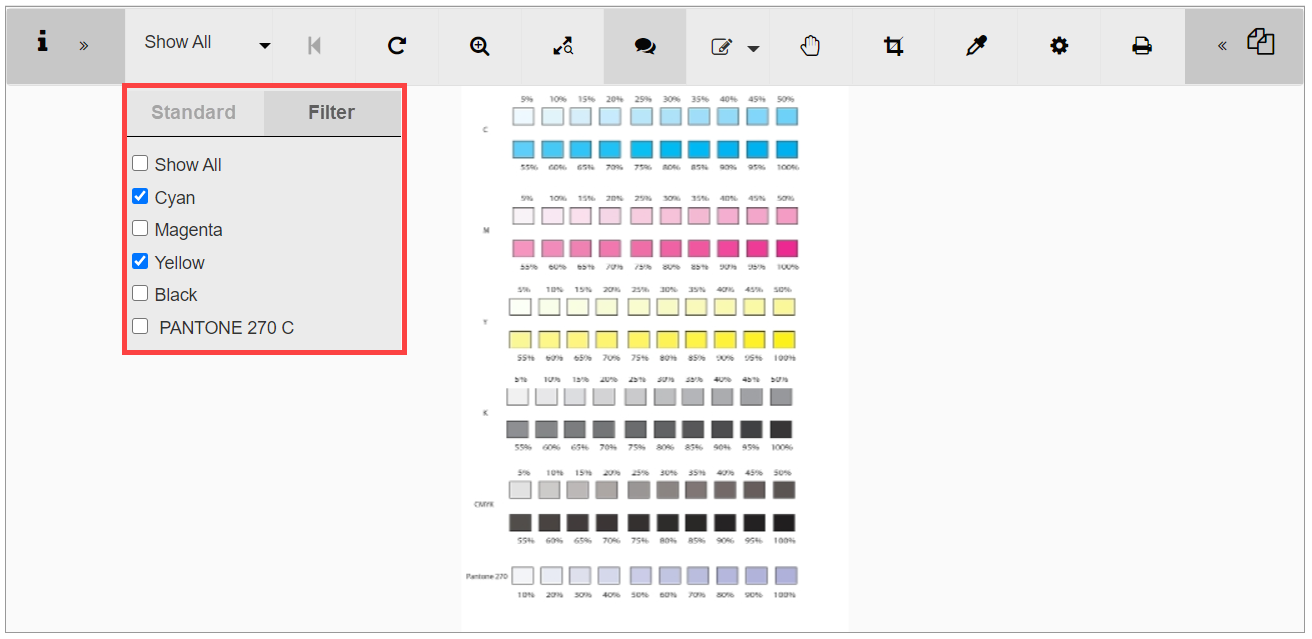
- Click Show All in the toolbar to apply your selections.
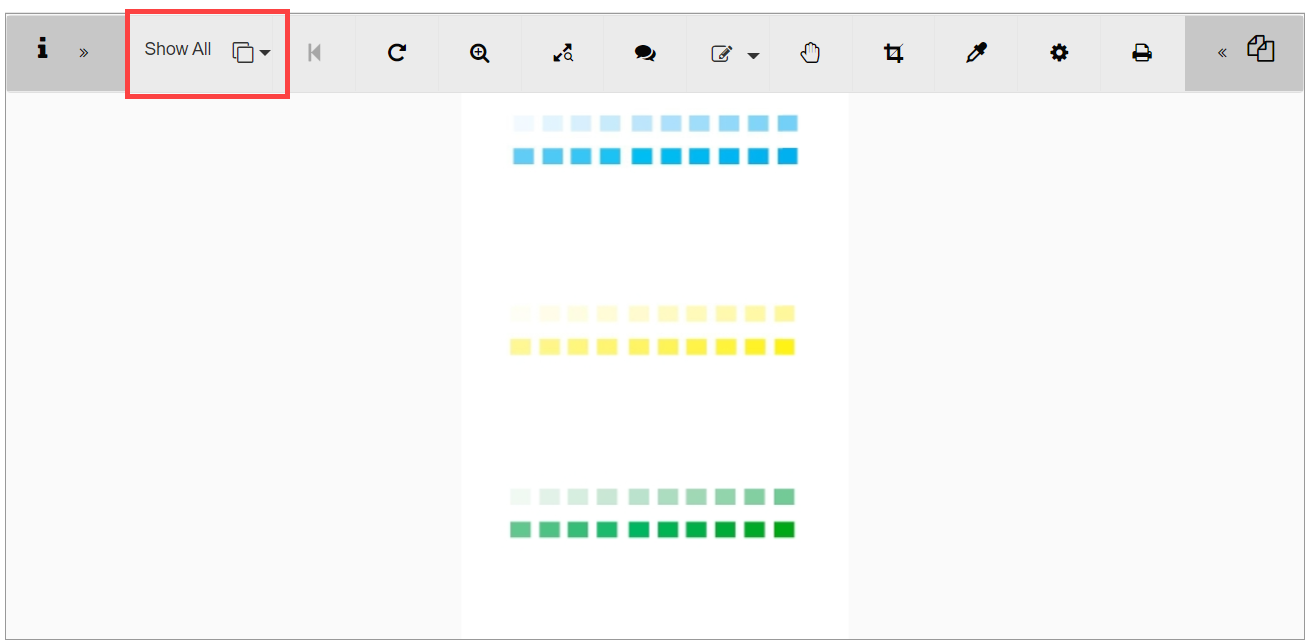
The icon displayed in the toolbar indicates that the Filter functionality is applied.
Note: Color separations selected under the Filter tab are displayed in true color.
 more
more