 Notifications Centre
Smartflow’s Notification Centre includes a centralised interface to unify and manage user notifications. Notification Centre allows you to consolidate updates from multiple sources into one accessible location.
Notification Centre includes:
-
Centralised Notifications Hub: The Notifications Centre serves as a unified location within the Smartflow UI for users to access all notifications and updates, addressing current issues like dispersed alerts and non-intuitive access points.
-
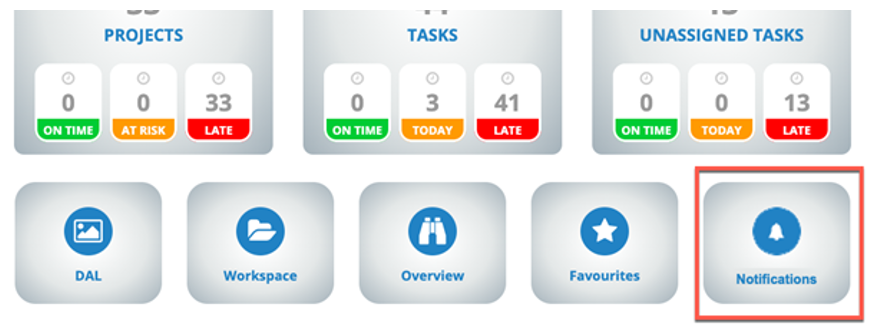
Access Points and Visual Alerts: The Notifications Centre is accessible via a button in the workspace navbar and the Preferences button on the dashboard. Both buttons feature visual indicators (badges or color highlights) to show unread notifications.
-
Notification Types Included:
-
Task Notifications
-
Project Notifications
-
Project Discussion Mentions
-
DaVinci Annotation Mentions
-
Project Shares
-
Exports
-
Imports
-
Announcements
-
-
User Interface Features: The UI displays up to 30 days of notifications with filtering options by type and date, read/unread markers, toggle to show only unread notifications, and support for expanded/collapsed views of notification content. Notifications related to favourite projects are starred, and links open in new browser tabs.
-
Notification Content Details: Each notification type displays information such as project/task names, IDs, timestamps, and content previews. Some notifications provide direct links to related projects or tasks, with appropriate access controls enforced. Announcements and proxy agreements are prominently displayed until read or expired.
-
Preferences and Settings: The Notifications Centre functionality is controlled by a system setting that can be enabled or disabled by administrators. Users can customize notification delivery preferences, choosing between email, Notifications Centre, or both, with specific options for announcements, discussions, and shares.
-
Legacy Notifications Integration: Existing notification UIs such as My Exports and discussion or announcement pop-ups are merged or optionally retained depending on user preferences, ensuring a smooth transition to the new system.
-
Notification Behaviour: Users can mark notifications as read by interacting with them or clicking a blue dot indicator, with tooltips guiding the process. Notifications are updated dynamically based on user actions and preferences.
-
System Control and Deployment: The Notifications Centre is initially disabled by default and invisible to users until enabled via system settings, allowing controlled rollout and potential future default activation.
To enable the Notifications Centre, navigate to Admin > System Settings > Other Settings > Workspace & Search Settings. To access the Notifications Centre, click the Notification Centre button in the workspace or in the Dashboard: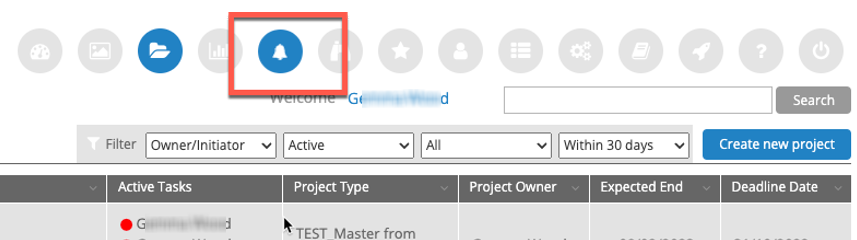
Note: The Notifications Centre button features a badge to show how many notifications are unread.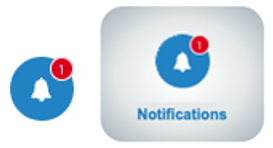
The Notification Centre page opens: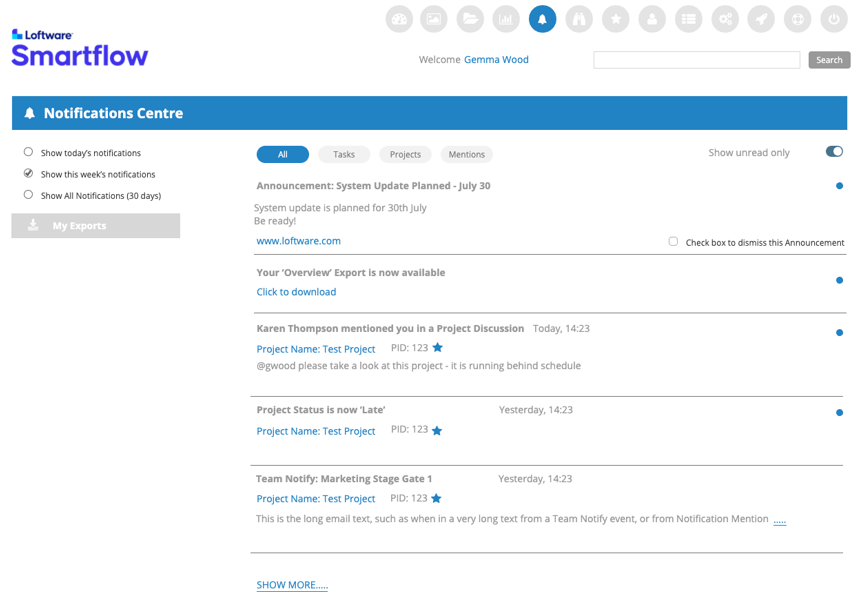
When Notification Centre is enabled, there is an option in Preferences to configure what applies to Notification Centre – i.e., to have Notifications remain as email only, or be only shown in Notification Centre, or choose both: ‘Email & Notification Centre’ (default option).
Announcements, Discussions and Shares have additional Preference settings: To use the existing Pop-up or merge into the Notifications Centre.
You can filter your notifications in different ways:
-
All Notifications are the default view when the user loads the screen, and the user can return to the unfiltered view at any time.
-
All filters contain all types of notifications (some of which are not covered by the other filters).
-
Project Notifications allows to user to filter for Project Notifications (as defined in Email Preferences).
-
Task Notifications allows the user to filter for Task Notifications (as defined in Email Preferences).
-
Mentions – any @mentions in the Project Data Discussion field or from DV Annotation Mentions..
-
Date and time will display according to the user’s date preferences except where date = Today shows ‘Today’ and where date is the previous day shows ‘Yesterday’ instead of date.
The Notifications List properties:
-
A maximum of 30 days of notifications is possible, although the default shows up to 20 records from the past 7 days. If fewer than 20 records appear for the last 7 days, then only those records will appear unless the user chooses to expand the timeframe to 30 days.
-
The 20 records don't include unread Announcements and Proxy Agreements; once either of the 2 types is set to read, they are listed in the all notifications list.
-
The layout can be -
-
Announcements (unread)
-
Proxy Agreement (unread)
-
20 other notification records.
-
-
-
The UI shows 20 before cutting off the list.
-
You can select Show More to load another 20 notifications (the page will be longer).
-
Up to a max of what is available for the 30 days
-
-
Read & Unread option to show all or only unread via toggle switch at the top
-
User can mark a notification read by clicking the blue dot or by accessing the project/download link. (Blue dot has a tooltip to instruct)
-
You can also mark a notification as Read by interacting with it—i.e., expanding the content or using the Project link.
-
Expand content applies to opening email content via Notification Centre – e.g., for ask/Project/Mention /Project Share Notification
-
For Project/Task Notification, email content is not shown directly but offers a link Show more to view the content in a pop-up.
-
-
Star icon notifies that relates to a project the user has in their favourites.
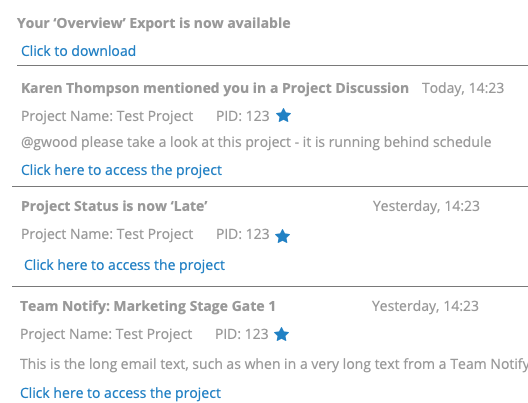
To show email content, click on Body of the Project/Task Notification Bar.
 more
more